

WebAnaya - Web Development & Digital Marketing Agency
Back to Blog
How To
WebAnaya TeamWebAnaya Team

How to know website traffic and its estimated revenue?

www.websitetrafficspy.com to get website traffic and revenue details

This is the big question everyone must be wondering that what is the estimated traffic and revenue of a particular website?

www.websitetrafficspy.com to get website traffic and revenue details

In this post I am going to share with you a website tool that will show you not only estimated website traffic and revenue on a particular website but also some of the cool below mentioned web statistics.

1. Worldwide alexa rank in terms of traffic
2. Monthly Users
3. Monthly Pageviews
4. Website Value
5. Monthly Earnings
6. Daily Earnigns
7. Website users geo location
8. Website hosting server location
9.  Even more.

[button color=”red” size=”small” link=”http://websitetrafficspy.com/” target=”blank” ]Access Websitetrafficspy.com[/button]

Related Posts

How to install Ghost on Zpanel with multiple instances?

Ghost is an incredibly stand alone modern designed just for blogging platform, while using it gives you pleasure, installing it for beginner is a little hectic. I am assuming if you are reading this relevant post then you must have a VPS/Dedicated ready server or if you are testing on local virtual machine then your […]

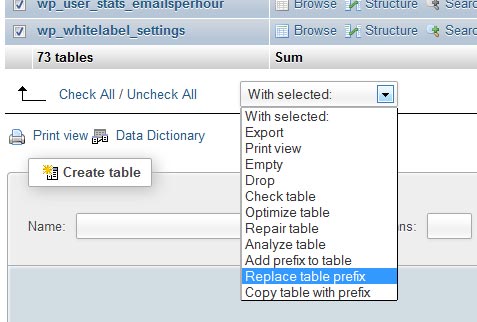
Replacing table prefix
January 11, 2014WebAnaya TeamHow To

Renaming the default WordPress tables prefix is one of the very important step to secure your WordPress from hacker. There are two methods  to alter or rename WordPress tables prefix: First Method :- To replace, rename or alter table prefix via Phpmyadmin Application table structure options. 1. Access your phypmyadmin2. Select your database3. In table structure […]

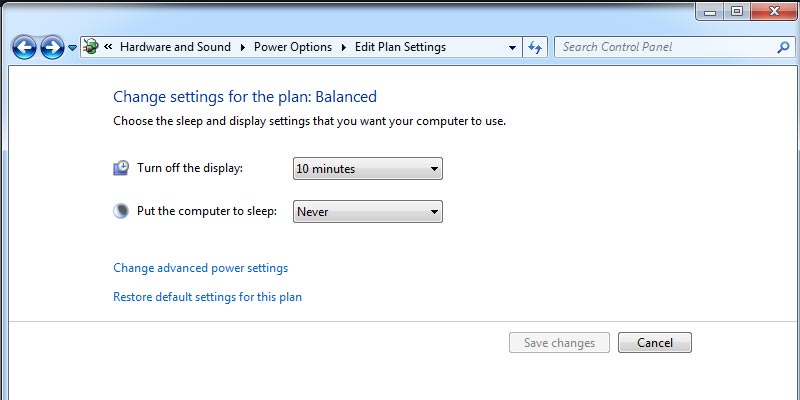
How to change sleep mode timings in Windows 7
January 6, 2014WebAnaya TeamHow To

In many cases you may want to change sleep mode of your windows 7 running pc or laptop i.e. Automatic system failure or BSOD (Blue screen of death). To change the sleep mode in Windows 7 follow below steps. Step 1. Open Control Panel from windows 7 start icon Step 2. Go to search bar […]